
Share Your Feedback – Help Us Improve Search on Community!
Please take a few minutes to participate in our Search Feedback Survey. Your insights will help us deliver the results you need faster and more accurately.
Click here to take the survey
Changing the IP address of the IT Advisor server through Webmin
ITA server (on-premises only)
Search in
Improve your search experience:
Exact phrase→Use quotes " "(e.g., "error 404")
Wildcard→Use * for partial words(e.g., build*, *tion)
AND / OR→Combine keywords(e.g., login AND error, login OR sign‑in)
Keep it short→Use 2–3 relevant words, not full sentences
Filters→Narrow results by section(Knowledge Base, Users, Products)
Send a co-worker an invite to the portal.Just enter their email address and we'll connect them to register. After joining, they will belong to the same company.
You have entered an invalid email address. Please re-enter the email address.
This co-worker has already been invited to the Exchange portal. Please invite another co-worker.
Please enter email address
Send InviteCancel
Invitation Sent
Your invitation was sent.Thanks for sharing Exchange with your co-worker.
Log on to Webmin using the user credentials created during the installation.
Change the IP address.
In the left menu, select System>Network Configuration.
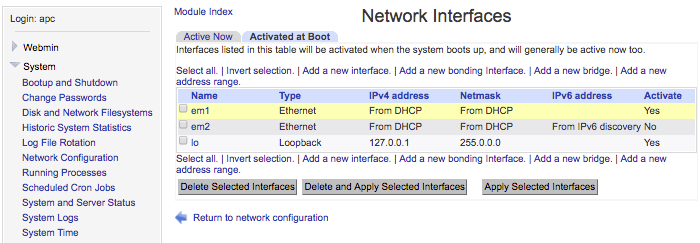
Select Network Interfaces.
Click the Activated at Boot tab.
Click a line in the list of network interfaces to edit boot time interface parameters.
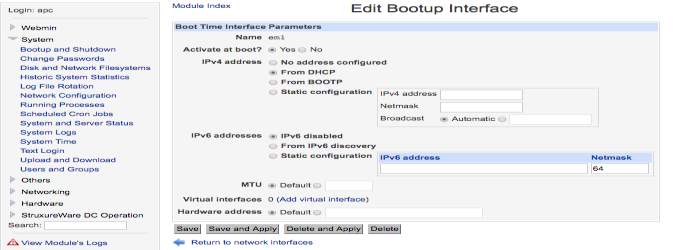
Set Activate to Yes.
Click the interface you want to change (for example eth0).
Select Static configuration and type the IP address in IPv4 address and the Netmask, then save. It is recommended that you do not use IPv6 (not supported).
Specify the Gateway.
In the left menu, select Network Configuration.
Select Routing and Gateways.
In the Boot time configuration tab, set Default router to Gateway and type the default route, then save. If you see this error message: Failed to save routing: '' is not a valid IPv6 gateway, ignore it.
Specify the DNS server.
In the left menu, select Network Configuration.
Select Hostname and DNS Client.
In DNS servers, type the primary and secondary DNS servers, then save.
Restart the server.
In the left menu, select Boot and Shutdown.
Click Reboot System and wait for the system to finish rebooting.